![g-logo2.png]](https://support.powerednow.com/hs-fs/hubfs/g-logo2.png?height=50&name=g-logo2.png)
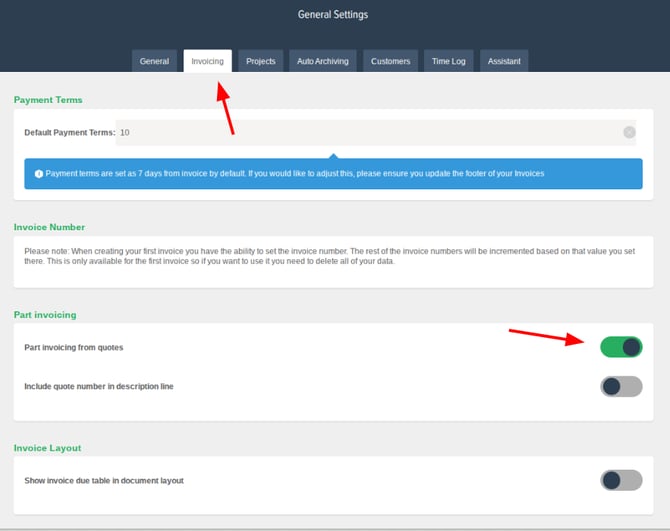
First you will need to make sure that you have part invoicing enabled in the settings. For this click on the Settings Cog (top left of the home page), then from there click into General Settings and then select the tab for Invoicing at the top. In there will be a switch to enable Part invoicing for quotes.
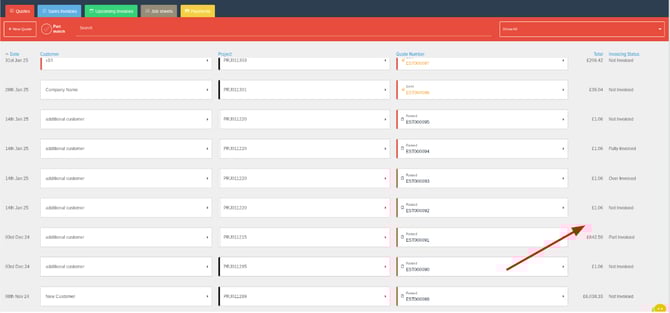
Soon as that is enabled, you will have an Invoicing Status column on the right hand side of your quotes tab stating if there are invoices in the system associated with that quote.
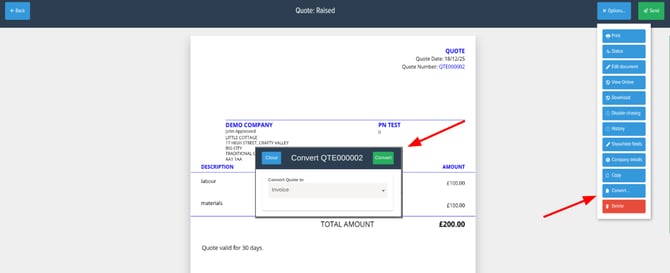
Once that is done, to create a part invoice select the quote you'd like to create this for and then select Options > Convert, then have Invoice selected on the drop down and select Convert.
From there you'll have four options depending on how you want to create the part invoice from the quote.
All lines from quote - This will convert the entire quote into a full invoice.
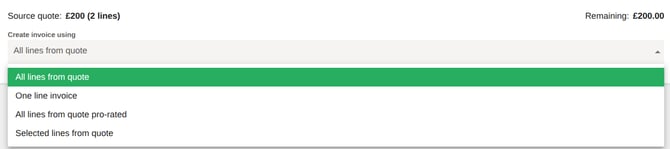
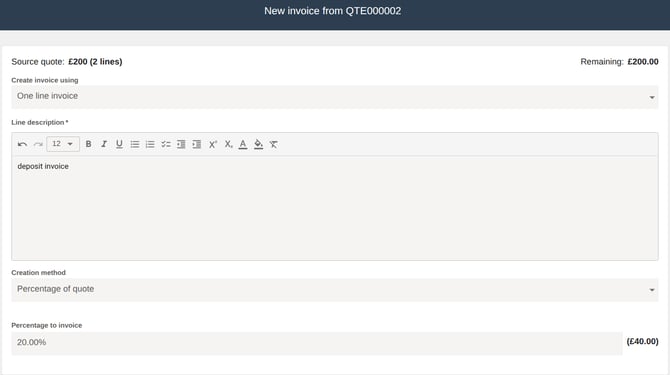
One line invoice - This lets you enter your own description for a single invoice line and then create an invoice for either a percentage of the quote total or a fixed amount.
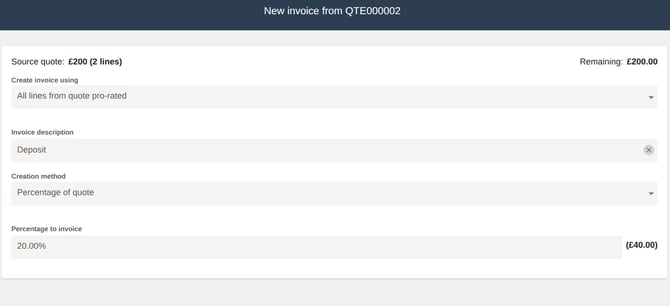
All lines from quote pro-rated - This will convert all of the individual lines from the quote into an invoice and let you invoice either a percentage or a fixed amount of the quote total. You can also add a custom title to this invoice if you like (e.g. “Deposit”).
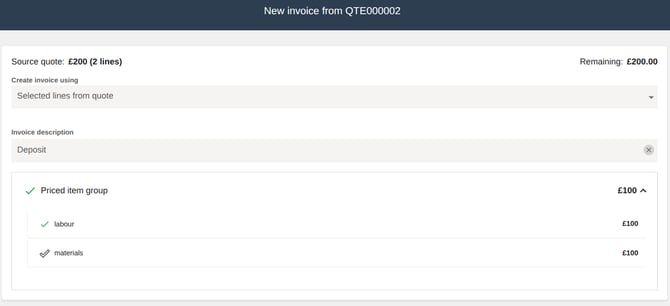
Selected lines from quote - This option lets you choose specific pricing lines from the quote to include on the invoice. For example, you can create a deposit invoice so the customer pays for the materials listed on the quote. You can also add a custom title to the invoice if you wish (e.g. “Deposit Invoice for Materials”).
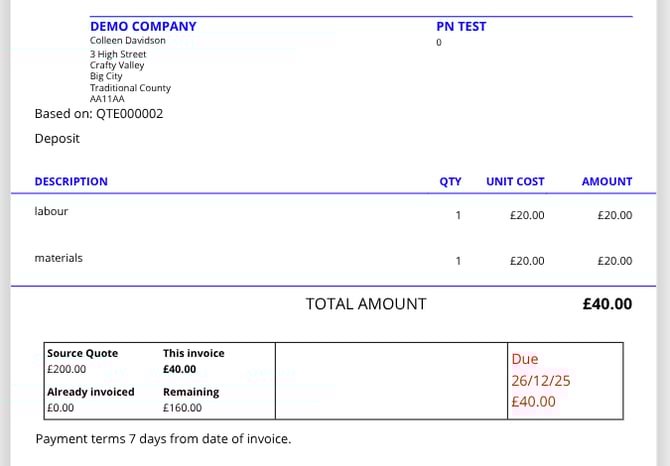
Once you’ve chosen how you want to create the part invoice and generated it, the invoice will show the original quote total, the amount being invoiced, and the remaining balance after that invoice is paid. When you go back into the quote, it will clearly show that a part invoice has been created against it as well. (This box can be displaying or hidden from within the settings depending on what you'd prefer)
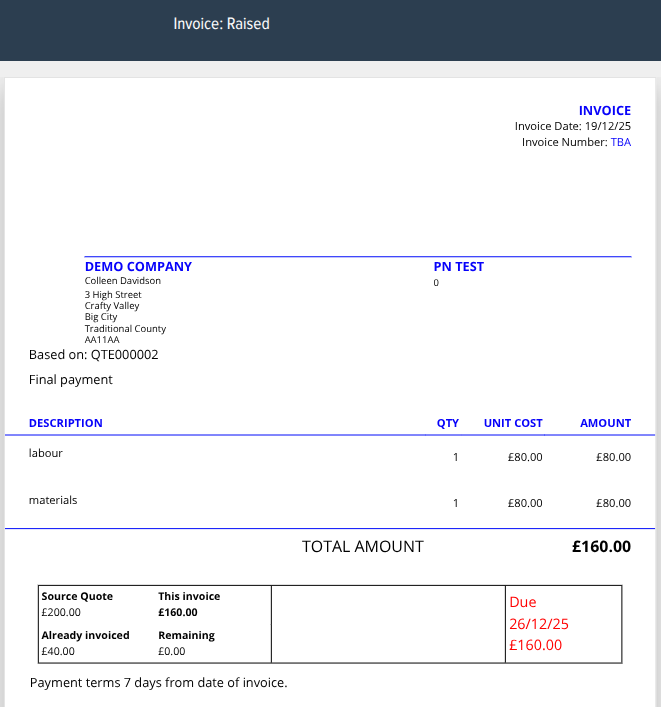
When you’re ready to raise the next or final invoice from that quote, open the quote again, select Options > Convert, and convert it to an invoice as before. When you reach the screen where you choose how to create the invoice from the quote, the system will recognise that an invoice has already been created for this quote.
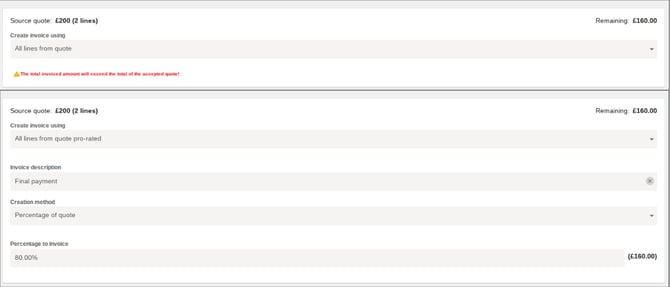
If you select one of the part invoice options, the system will automatically deduct the amount already invoiced and show you the remaining balance that can be used to create the new invoice.
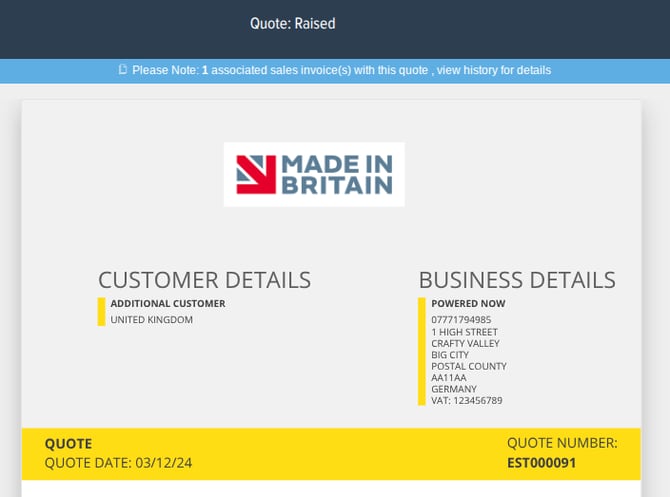
Once any part invoices are created, the quote that they were created from will display a banner at the top of the screen stating how many invoices have been created from that quote. Then in the history of the quote will be a breakdown of the invoices that have been created from it.