![g-logo2.png]](https://support.powerednow.com/hs-fs/hubfs/g-logo2.png?height=50&name=g-logo2.png)
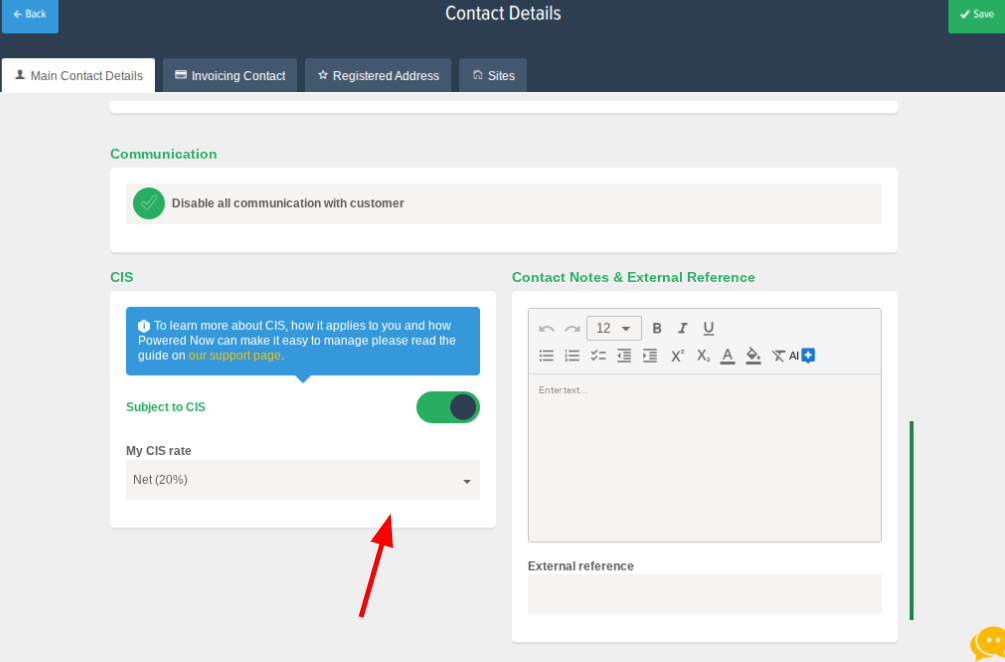
First you'll need to turn on CIS for the account via the Settings and then turn CIS on for the customer that you are wanting to created the invoice for. To do this, go into the contact record and click the Edit (Blue Pencil) button in the top right, select More Details at the top and then scroll down to the switch for Subject for CIS.
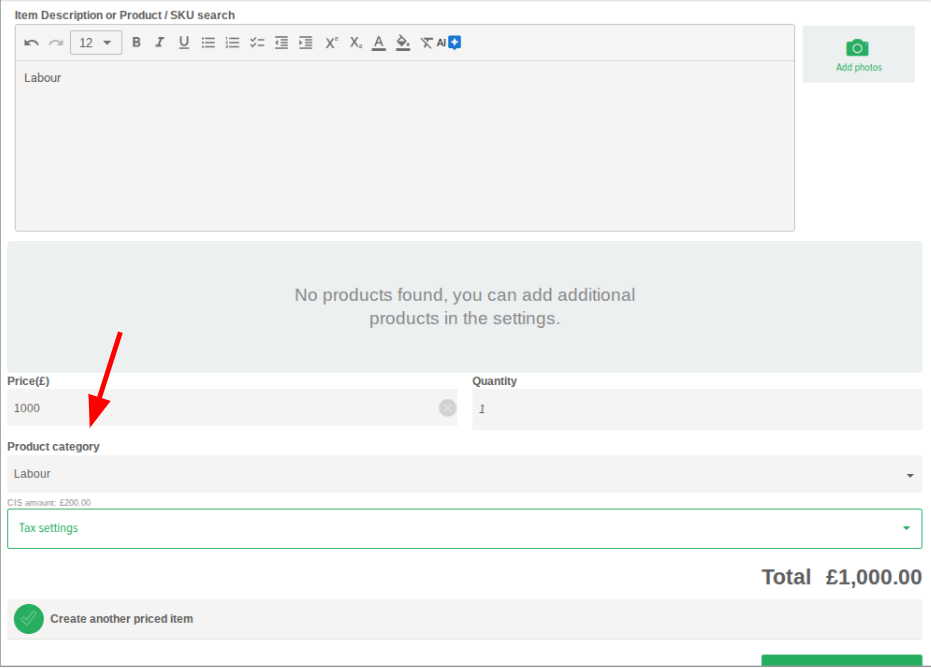
After doing this you can create the invoice for this customer. When in the pricing stage and create a pricing line for the invoice, there will be a Category drop down. From this, the app will calculate the CIS for any pricing lines you select as Labour.
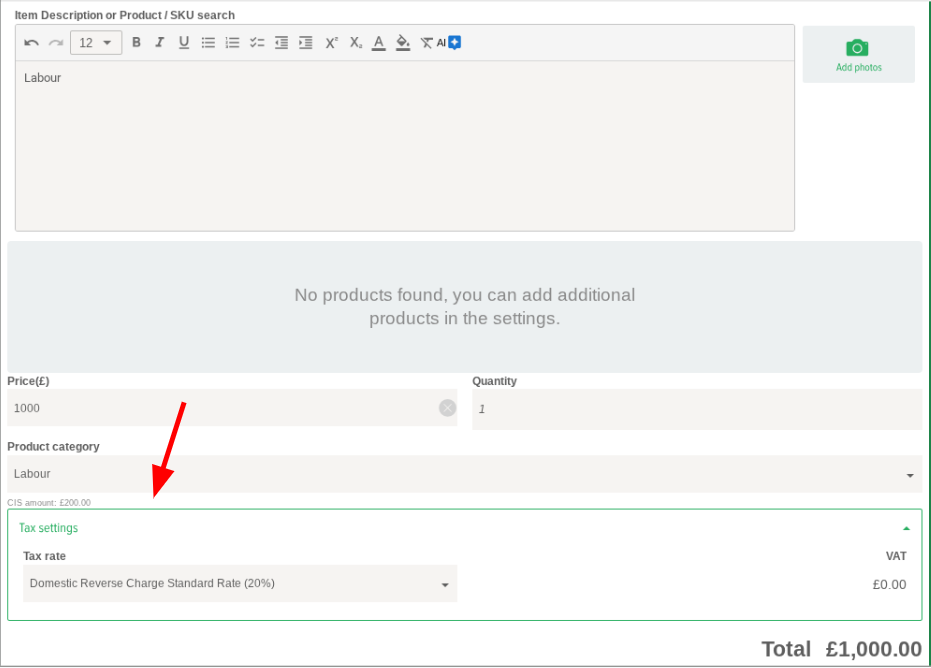
To apply DRC to the document, on each pricing line you create will be a drop down for Tax Settings where in there you can set the tax for that pricing line to Domestic Reverse Charge.
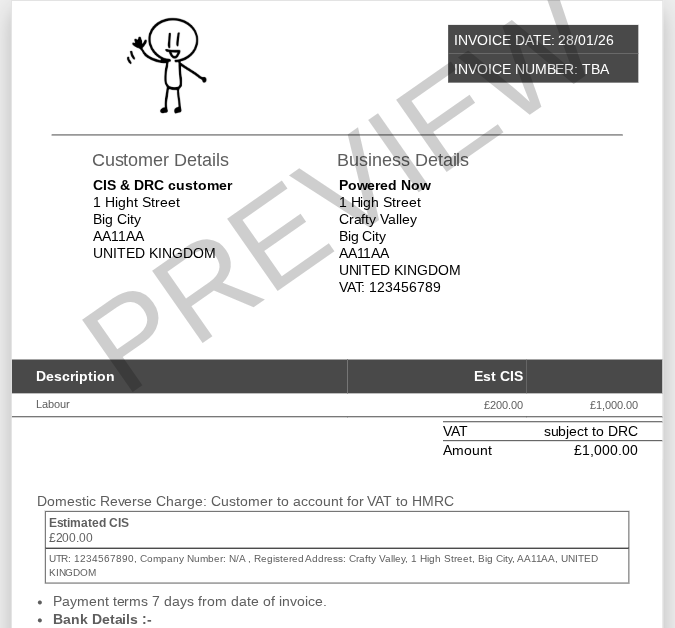
Once DRC and CIS has been applied to the pricing lines accordingly, when you go to the preview of the document it will display a breakdown at the bottom of the document and show an amount owed from the customer after the CIS and DRC has been applied.