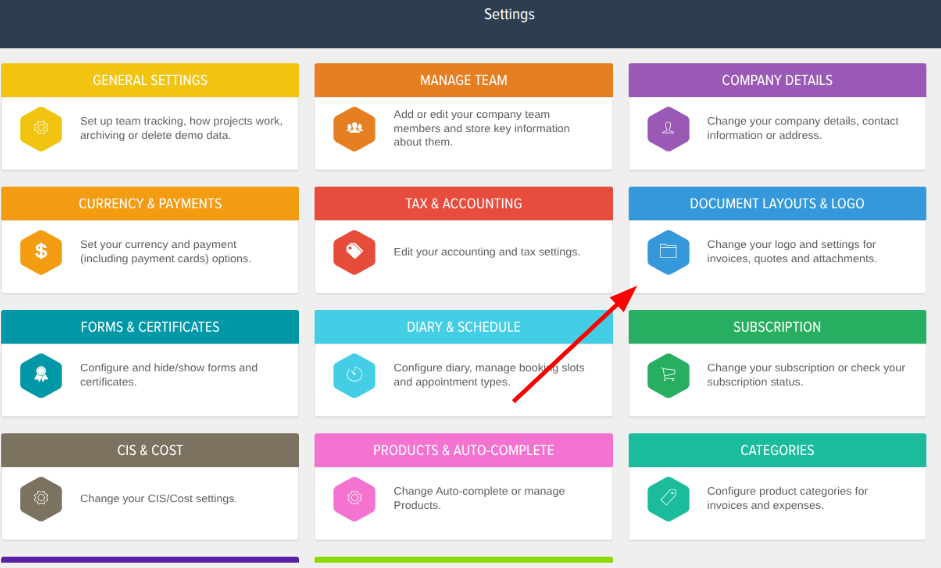
First if you would like to set up a default body of text that you'd like to appear on the document for the customer to sign, if you go into the Settings of your account (Cog top right of the home page). Then from there go into Document Layouts & Logos.
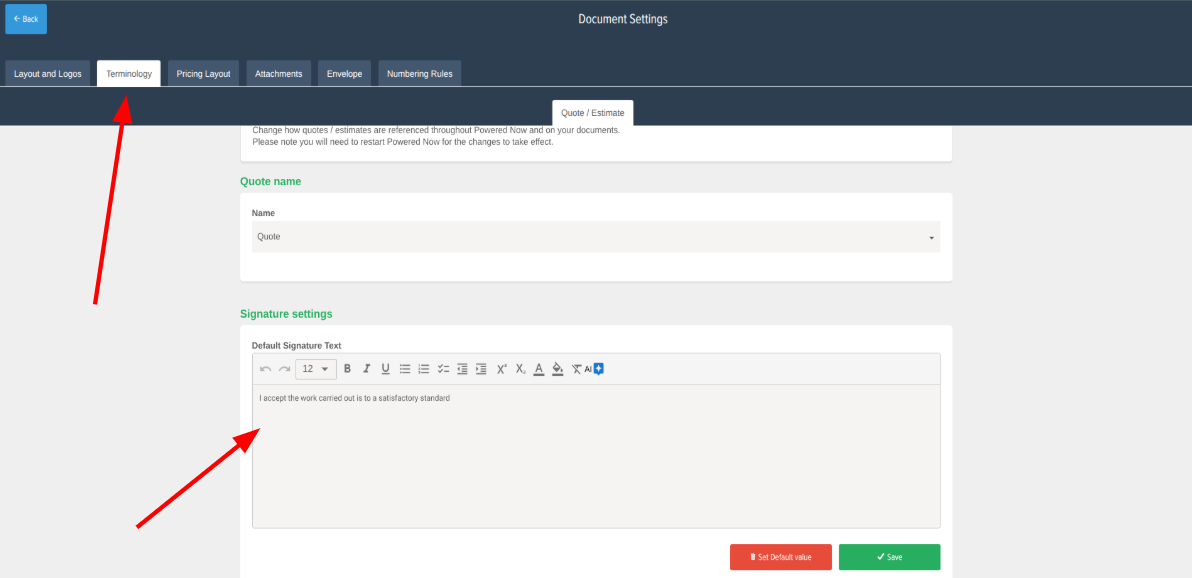
Then go to the Terminology tab at the top and in there will be a Default Signature Text box to enter what you'd like appearing on the document as default.
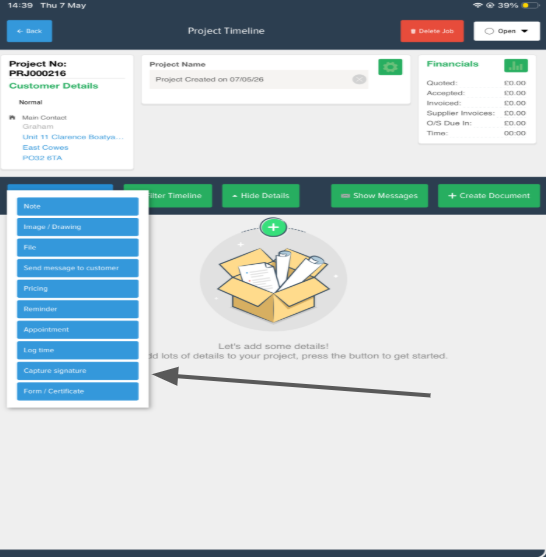
Once saved and you're wanting to capture a signature from a customer on a document, there are a couple of places in the app where you can do this. Firstly in a Project under the Add New Item to Project button you'll have the Capture Signature button which allow you to capture the signature on your mobile or tablet and then create the document with it.
(This option only available on the mobile or tablet app, not desktop)
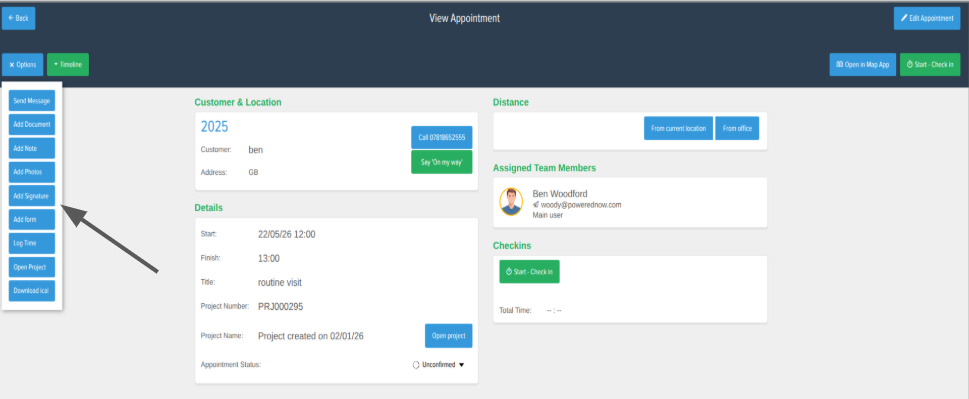
Alternatively when you click into an appointment on the diary, under the Options button on an appointment will be the option to Capture Signature to do the same thing.
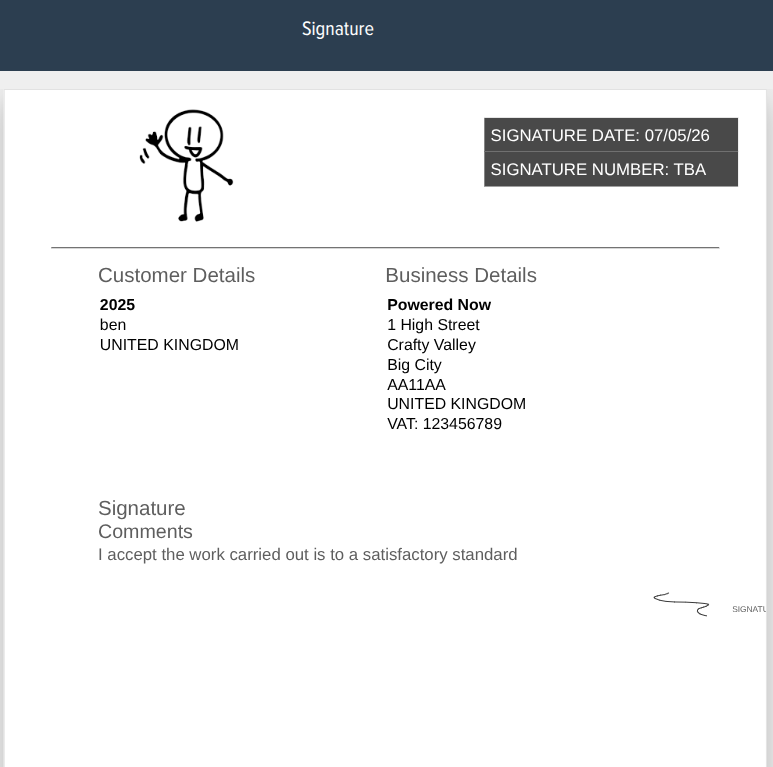
Once the signature is captured by the customer it will create a document for it looking like this with your company logo and details on it...